
Set up tier progression based on total purchases, for example 5%, 7% and 10%.
Who this guide is for: owners and managers. Before making changes, make sure the correct establishment is selected.
Before you begin
- Sign in to the appropriate workspace and check the establishment name at the top of the page.
- Prepare the information you will enter. Payment and integration settings also require the provider's connection details.
- If an option is missing, check your plan and your role's permissions.
Setup steps
- Select the cumulative type. Enable tiered discounts or loyalty points.
- Add the first tier. The first threshold must start at zero.
- Add subsequent tiers. Thresholds must increase, and rates must not conflict.
- Check the thresholds. Test amounts just below, exactly at and above each threshold.
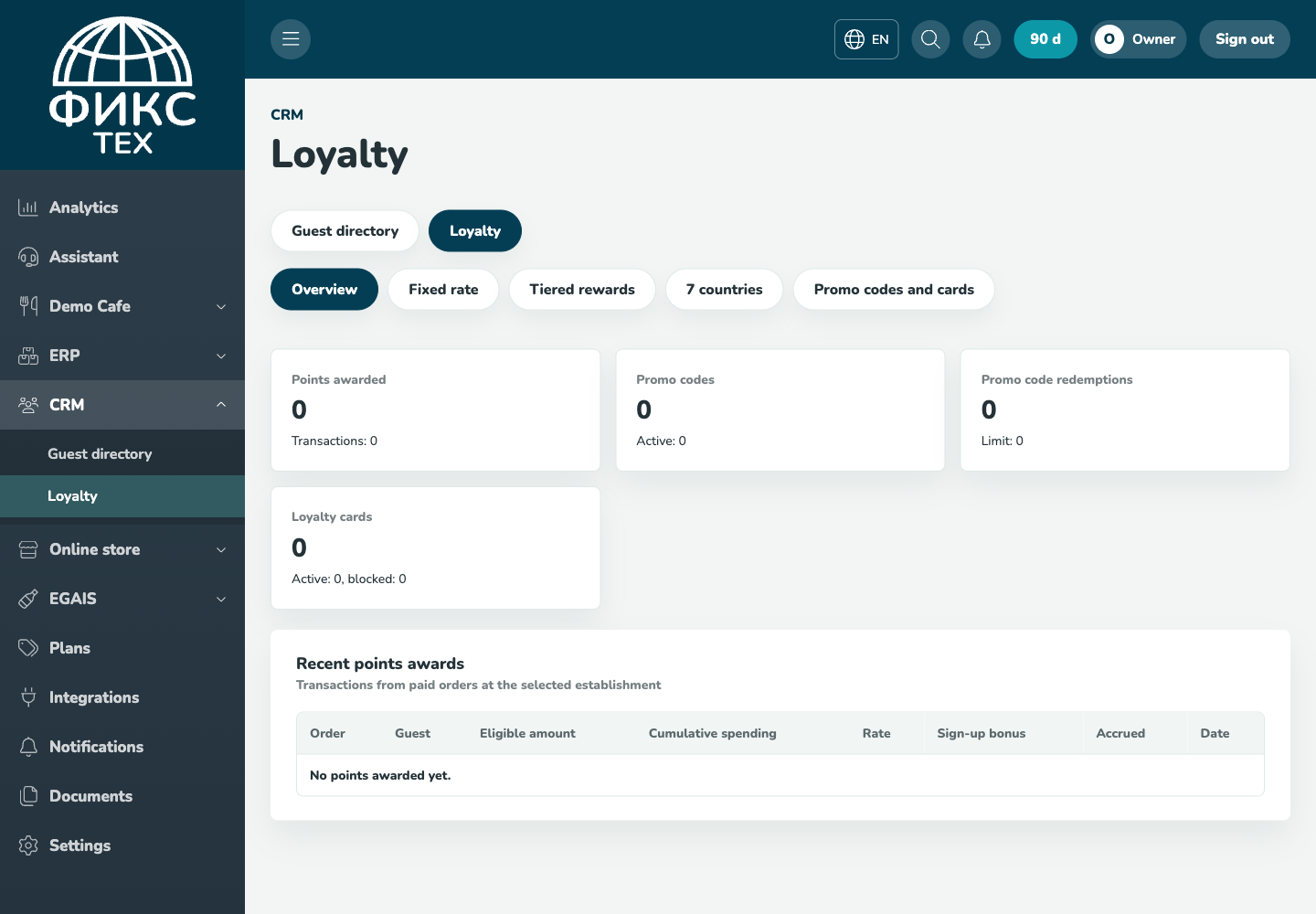
Check the result
At each threshold, one expected tier applies, and administrative changes affect only future calculations.
Troubleshooting
- Refresh the page and select the establishment again. Some data is only shown for the selected establishment.
- Check required fields, phone number format, dates and numeric values. Save errors appear on the right below the header.
- Do not create a duplicate just because a response is slow. Open the list first and check whether the record has already been created.