
How a guest pays through the connected bank and returns to a confirmed status without placing the order again.
Who this guide is for: This guide is for guests. Before making changes, make sure the correct establishment is selected.
Before you begin
- Sign in to the appropriate workspace and check the establishment name at the top of the page.
- Prepare the information you will enter. Payment and integration settings also require the provider's connection details.
- If an option is missing, check your plan and your role's permissions.
Setup steps
- Check the cart. Before paying, verify the table, items, modifiers, quantities and total amount.
- Select online payment. After the order is created, continue only to the secure page of the connected bank.
- Complete the payment. Wait to return to FixTech and do not submit again if the response is slow.
- Check the status. The success page appears only after server-side payment verification; if payment is declined, the order is not falsely marked as paid.
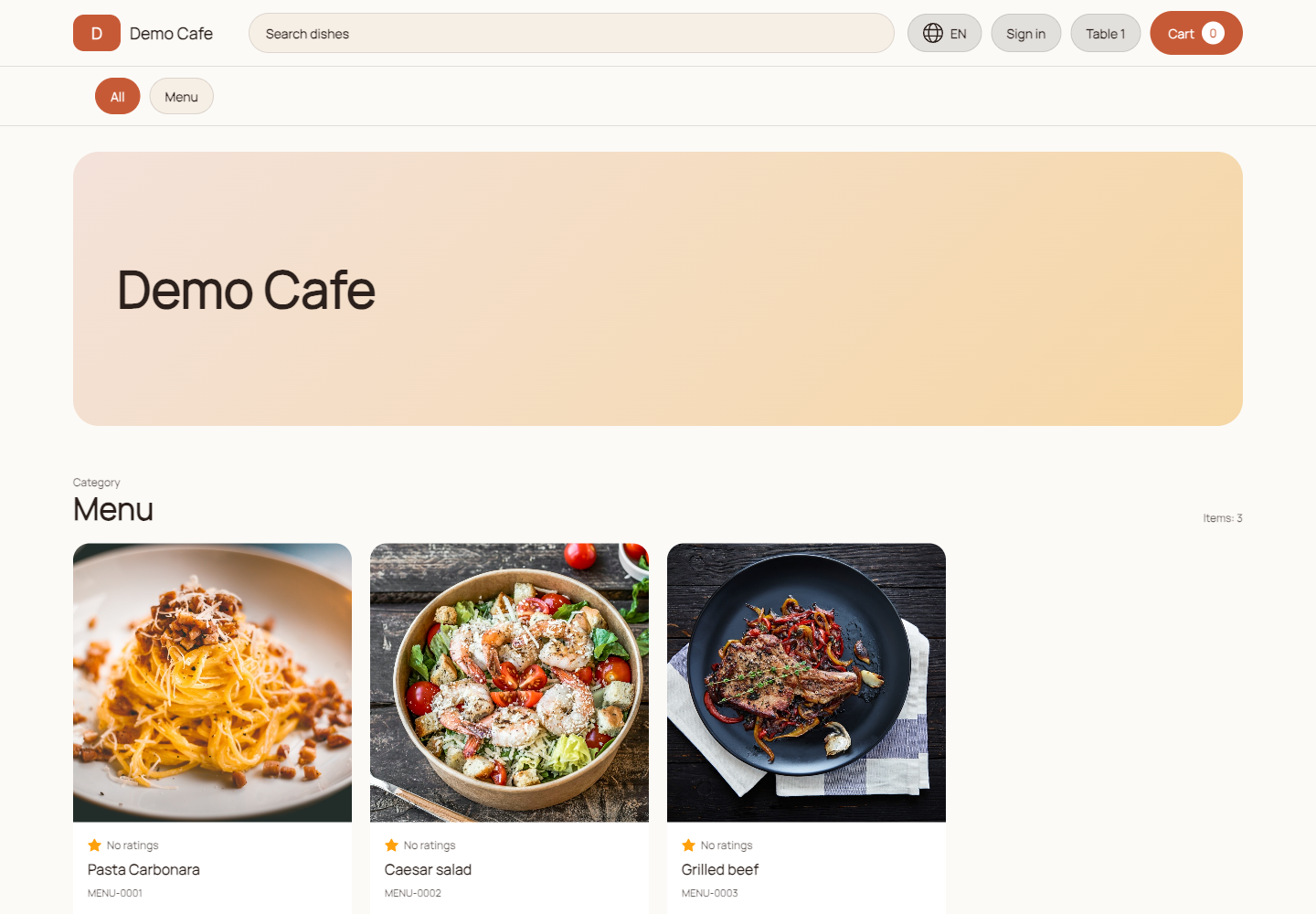
Check the result
One attempt is linked to one order and one amount, a repeated webhook does not create a duplicate, and the bank result does not expose payment details to other guests.
Troubleshooting
- Refresh the page and select the establishment again. Some data is only shown for the selected establishment.
- Check required fields, phone number format, dates and numeric values. Save errors appear on the right below the header.
- Do not create a duplicate just because a response is slow. Open the list first and check whether the record has already been created.