
The difference between a list, collapsed sections and folders with subcategories.
Who this guide is for: This guide is for waiters. Before making changes, make sure the correct establishment is selected.
Before you begin
- Sign in to the appropriate workspace and check the establishment name at the top of the page.
- Prepare the information you will enter. Payment and integration settings also require the provider's connection details.
- If an option is missing, check your plan and your role's permissions.
Setup steps
- Category list. All items in the parent and child categories are visible without collapsing sections or showing duplicates.
- Collapsed categories. Sections start collapsed and expand when selected.
- Folders. Select a top-level category, then the subcategory you need.
- Change the view in Settings. The setting applies to the current employee.
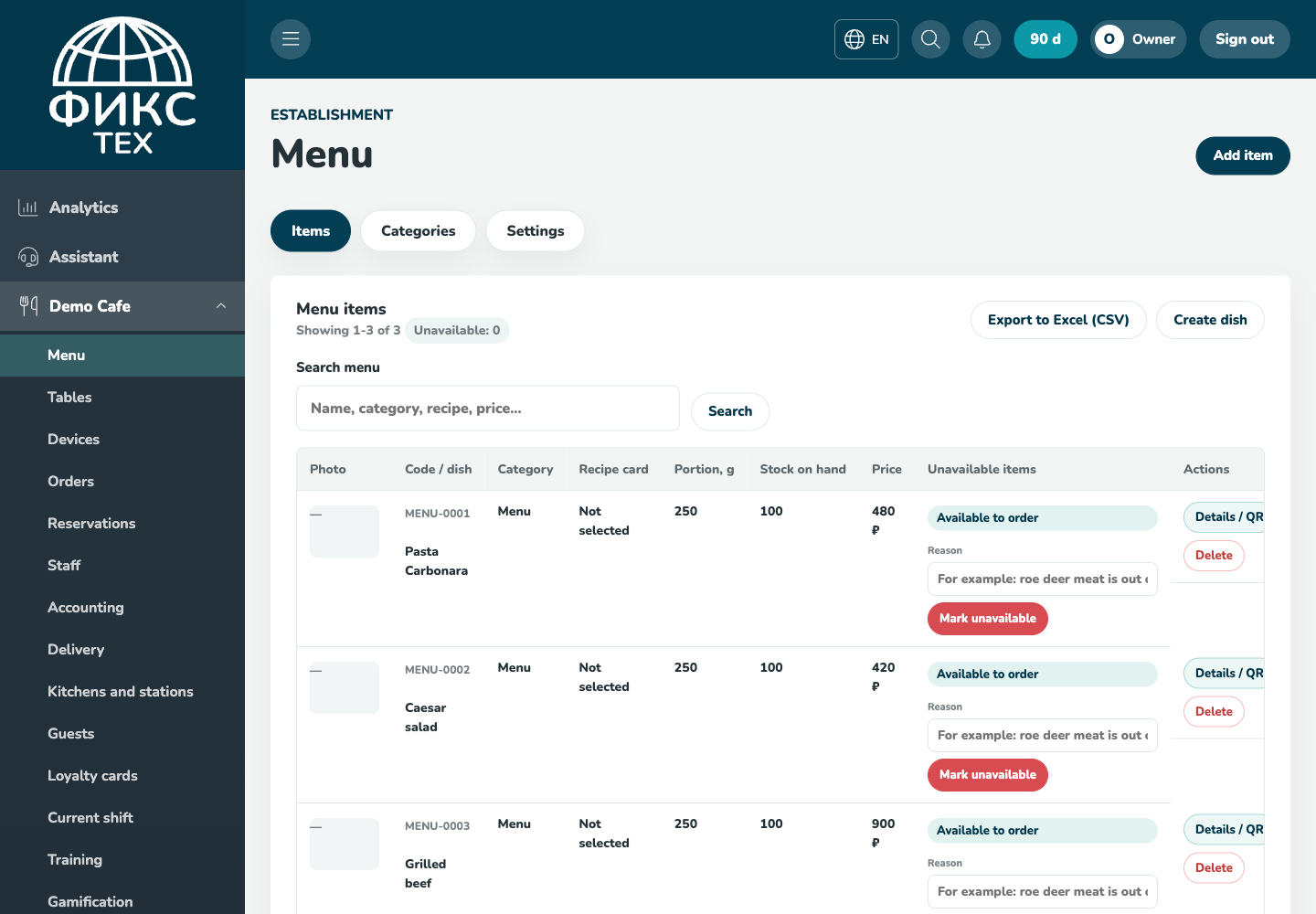
Check the result
The selected view persists after reloading, products are not duplicated, and empty categories do not get in the way.
Troubleshooting
- Refresh the page and select the establishment again. Some data is only shown for the selected establishment.
- Check required fields, phone number format, dates and numeric values. Save errors appear on the right below the header.
- Do not create a duplicate just because a response is slow. Open the list first and check whether the record has already been created.