
Create inventory items and import a product list with opening stock balances from a UTF-8 CSV file.
Who this guide is for: owners and managers. Before making changes, make sure the correct establishment is selected.
Before you begin
- Sign in to the appropriate workspace and check the establishment name at the top of the page.
- Prepare the information you will enter. Payment and integration settings also require the provider's connection details.
- If an option is missing, check your plan and your role's permissions.
Setup steps
- Get the template. Download “Excel (CSV)” from the selected establishment's inventory. XLS and XLSX files cannot be imported directly.
- Fill in the spreadsheet. Keep the column headings, check product names, units, stock balances and purchase prices, and remove duplicates.
- Save as CSV. Use UTF-8 encoding and a semicolon or comma separator. The file must be no larger than 3 MB.
- Upload the file. Select “Import CSV”. Columns are recognized by their headings; matching product names update existing items in the current establishment.
- Check the result. If errors occur, open the list first: some rows may already have been saved. Do not blindly repeat the entire import.
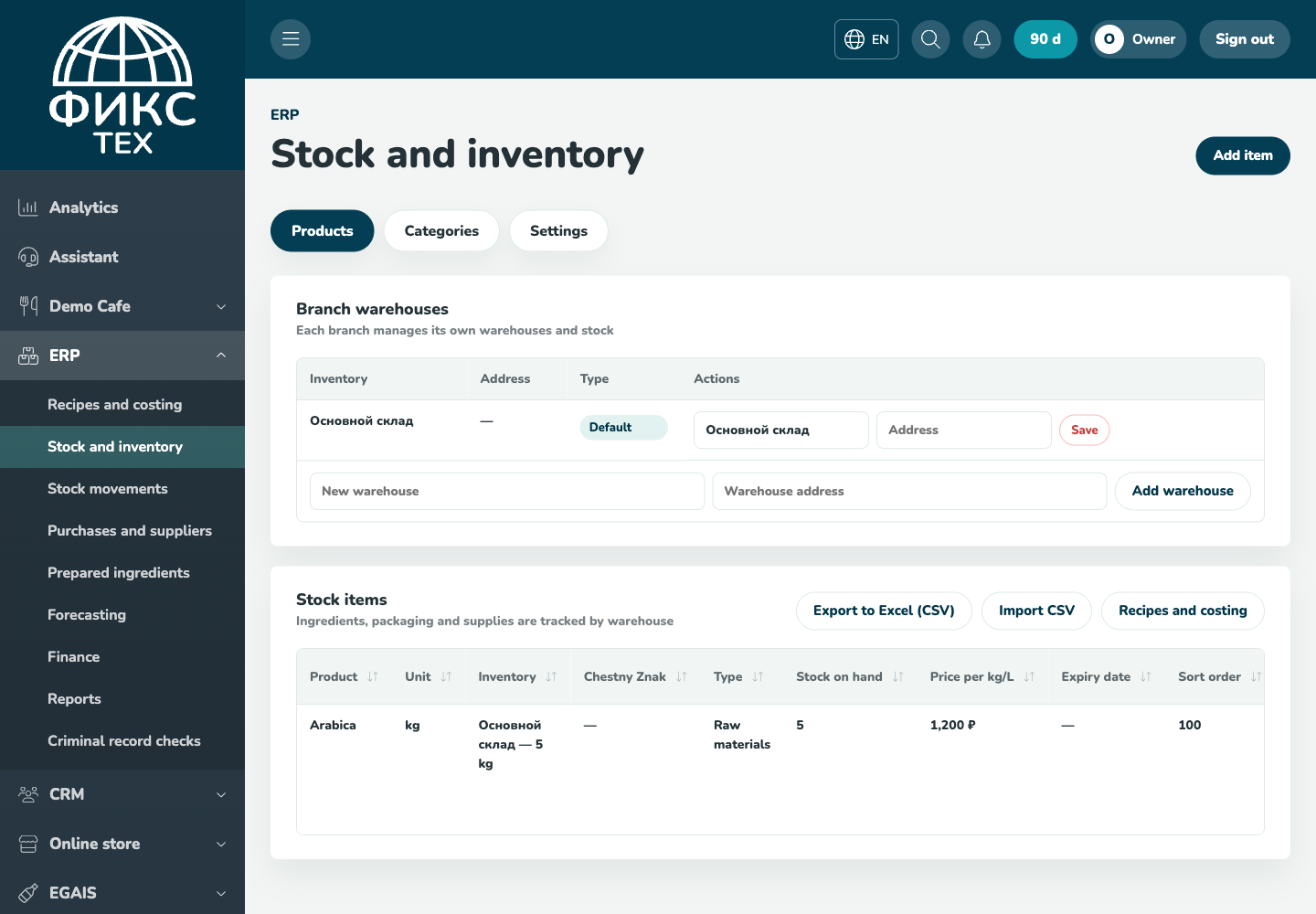
Check the result
Check quantities, units, stock balance signs and prices. Assign categories in product details; they are not imported from CSV. This file is not a complete inventory backup.
Troubleshooting
- Refresh the page and select the establishment again. Some data is only shown for the selected establishment.
- Check required fields, phone number format, dates and numeric values. Save errors appear on the right below the header.
- Do not create a duplicate just because a response is slow. Open the list first and check whether the record has already been created.